 Leina
Leina  Wanta
Wanta How Much Access Does Your AI Assistant Really Need?
Recent debates about personal agents reveal why account authorization, allowed actions, and recipients need separate controls—and where OOMOL and OpenConnector fit.
OOMOL
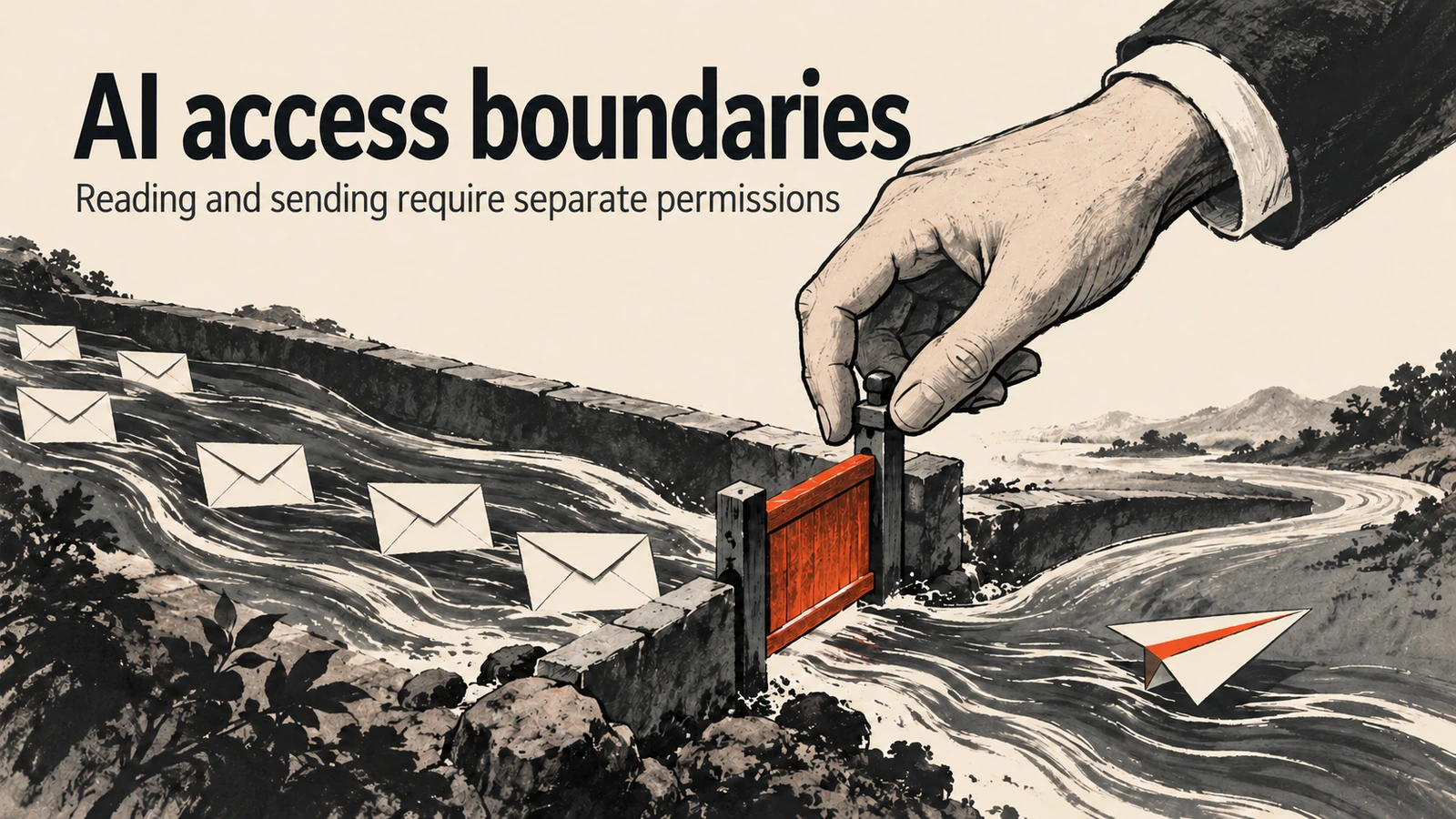
AI-generated editorial illustration: reading information and sending messages need separate permissions.
Asking AI to organize email, prepare for meetings, and follow up on work feels increasingly natural. The hesitation comes when you click Authorize. How much can it see? What can it do on your behalf? Can you take that access back?
A recent discussion brought those questions into focus. In an interview published by Business Insider on October 9, XMTP Labs CEO Shane Mac said his personal finance agent posted a report to his company’s Slack. The article is an edited, as-told-to account, rather than an independent technical audit.
The interview was shared in Reddit’s r/technology. Some commenters objected to giving AI sensitive information; others questioned why personal and work accounts were connected. Their reactions raise a practical concern: when an assistant can both read information and send messages, how does the user control where that information goes?
On October 12, CNA’s TikTok video also addressed whether users give agents too much access. Its description focuses on whether people understand the permissions they grant.
These sources do not show that every agent will fail. They show that permissions are part of the public discussion about personal assistants. For anyone putting AI to work, access should follow the task.
Organizing email and sending it need different permissions
Imagine asking an assistant to identify emails that need a reply each morning, list the key points, and suggest responses.
That requires searching and reading email. Suggested replies can appear in your conversation for review. Automatically sending messages, deleting them, or changing forwarding settings should be separate authorization decisions.
Opening every action at the start gives the assistant more capability than this task needs. Changing its prompt later may not change the account’s actual access.
Start with three questions:
- What may it read? Which account, time range, and materials?
- What may it do? Search and read only, or also send, edit, and delete?
- Who receives the result? This conversation, or a specific personal destination?
Handle these separately. The source application’s authorization determines accessible data. The connector layer can restrict callable actions. The assistant’s workflow still needs to set parameters and recipients.
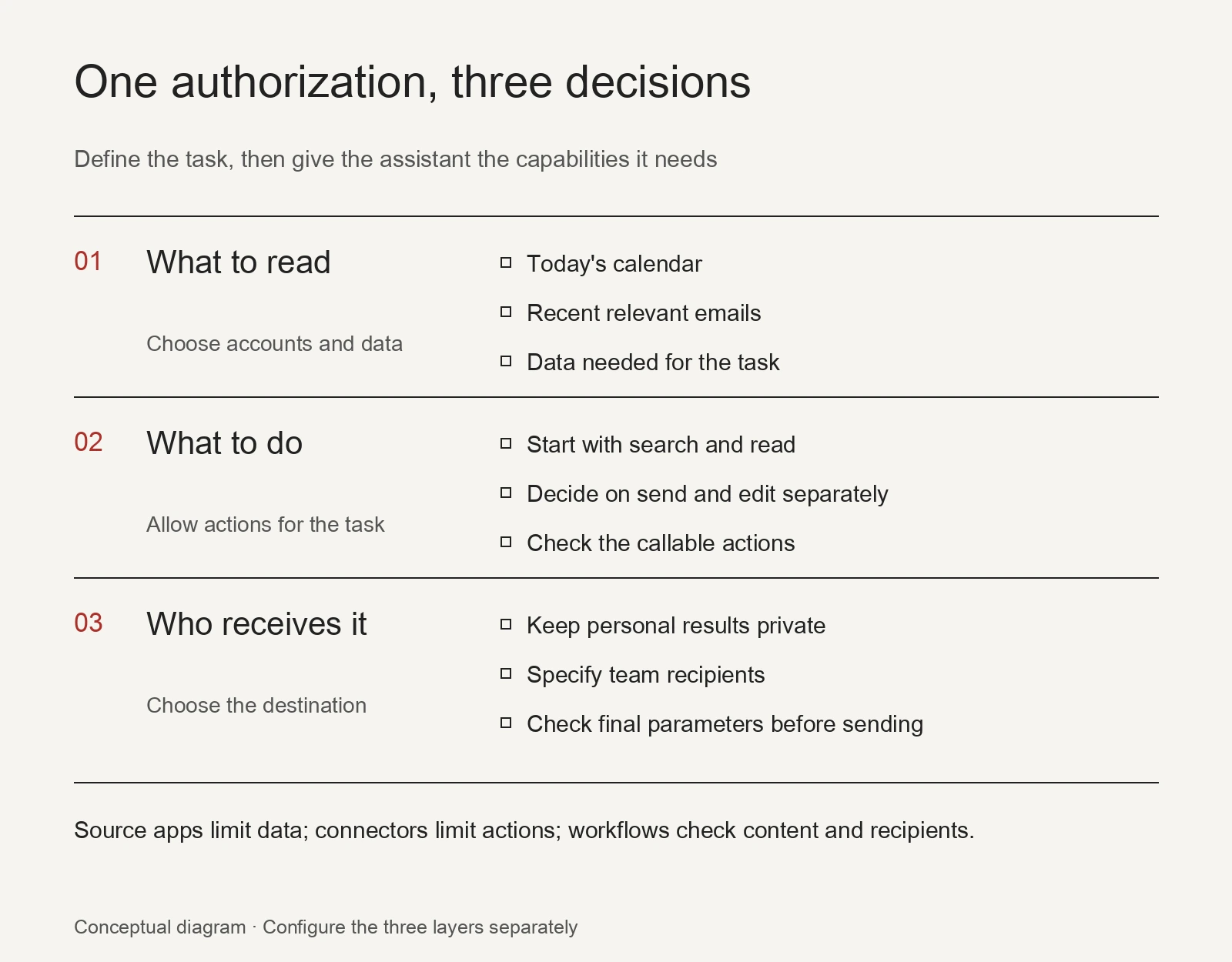
Configure the three layers separately. This is task-design guidance; a single switch does not enforce every boundary.
Read-only access still needs a clear destination
Read-only access is a useful starting point: organize information, let a person review it, and add actions gradually.
Reading also brings information into the assistant’s processing context. Even if it cannot change the source data, another tool that can send messages may let it carry that information elsewhere.
A personal morning brief can initially stay in your private conversation. A team brief should use approved sources and destinations. Personal finances, family schedules, and company messages deserve separately planned connections and output channels.
For messaging workflows, specify the account and recipient, use stable destination identifiers where possible, and show the final content for confirmation when needed. Similar group names, contact names, or account labels should not be the only basis for selecting a destination.
This belongs in workflow design. Permission to call a send-message action does not automatically determine whether every piece of content is appropriate for every recipient.
Give the assistant capabilities you can explain
OOMOL lets you apply these decisions to account connections and action access. Its access-control documentation distinguishes provider authorization, connection access, and permitted actions.
An email-organizing assistant can use a connection limited to search and read actions. When it needs to send on your behalf, configure that capability for the sending task. The same account can have multiple connections with different action and member-access scopes.
The authorization scopes you can select depend on the source service. The actions you can restrict depend on the current connection’s interfaces. Visibility into individual records still depends on source-app permissions and request parameters.
One useful detail: OOMOL’s custom action restrictions disable Proxy and the dynamic call_tool entry point. Calls then stay within explicitly allowed actions, rather than gaining another general-purpose route beyond the selected list. Check this behavior alongside the configuration in the documentation.
Teams that need to run their own connector service can use OpenConnector, OOMOL’s open-source, self-hosted path. It lets teams manage connection credentials, action policies, and run records in their own environment, exposing application actions through interfaces such as MCP and HTTP. The self-hosting guide covers runtime authentication, allowed and blocked actions, and redacted run records.
These capabilities help establish and inspect access boundaries. Business data returned to the assistant still needs sensitive-data handling. Recipients, content checks, and execution confirmation also need to be addressed in the assistant or application workflow.
Start with a small, useful task
The first version can simply read today’s meetings and related emails, then put the important items in your private conversation.
Once it selects the right accounts, finds the right materials, and identifies its sources, consider adding task creation or messaging. Each added action should have a clear task, account, and destination.
Know what to revoke when you need to stop. Disconnecting an account, revoking calling credentials, and canceling scheduled jobs are different control points. They do not automatically remove information already sent.
To start, configure a task-specific connection in OOMOL Connections, narrow its allowed actions using the access-control guide, and give your assistant a clear request:
Find the emails I need to pay attention to today. Only search and read; do not send or delete anything. Show the results in this conversation and keep links to the original emails.
When capabilities match the task, authorization becomes easier to understand—and you have a clearer basis for adding more later.