

 Leina
Leina  Wanta
Wanta monday.com 应用指南
OOMOL 支持你连接一次 monday.com 账号,并把经过授权的 monday.com 工具提供给支持的 AI Agent、可复用 Skills 和工作流。本文说明如何添加 monday.com 应用、OOMOL 会使用哪些权限、Agent 可以在 monday.com 中做什么、常见问题如何排查,以及如何移除应用。
连接外部账号前,你需要先登录 OOMOL。要安装 monday.com 应用,请登录 OOMOL,打开 Connections,搜索 monday.com,然后点击 Connect 进入 monday.com OAuth 授权流程。
前置条件
- 一个 OOMOL 账号。
- 一个允许你授权第三方应用的 monday.com 账号。
- 可以访问 OOMOL Console。
- 在 monday.com 中拥有授权所需 scopes 的权限。
- 如果你的 monday.com 账号由组织管理,可能需要 monday.com 管理员先审批 OOMOL 应用。
- Department 管理工具要求 monday.com Enterprise 账号已启用 departments。根据具体动作,当前连接用户需要拥有 monday.com 对该动作要求的部门管理权限,例如相关 department 的 owner 权限,或账号级用户管理权限。
添加应用
- 登录 OOMOL Console。
- 打开 Connectables,或直接进入 Connections。
- 搜索 monday.com。
- 选择 monday.com,然后点击 Connect。
- OOMOL 会跳转到 monday.com。如有提示,请登录 monday.com。
- 检查 monday.com 授权页面,包括请求的权限。
- 如果 monday.com 要求选择 account 或 workspace,请选择你要连接的目标。
- 点击 Authorize、Allow 或 monday.com 页面上对应的授权按钮。
- monday.com 跳回 OOMOL 后,确认 monday.com 已显示为已连接。
如果任一步骤失败,请查看常见问题排查。
授权后,OOMOL 会保存调用 monday.com 工具所需的连接信息。之后,你就可以在 OOMOL 支持的 Agent、可复用 Skills 和工作流中使用 monday.com 工具。
OOMOL 在 monday.com 中做什么
连接账号后,OOMOL 会提供可用的 monday.com 动作。根据你运行的动作不同,Agent 可以读取 account 信息、boards、items、updates、docs、assets、workspaces、users、teams 和 departments。当用户要求写回 monday.com 时,Agent 也可以创建或更新 board 数据、发布 updates、创建或更新 docs、整理 workspaces,或管理 departments。
安装完成后,OOMOL 不会自行开始使用 monday.com。只有当已授权用户、可复用 Skill、支持的 Agent 动作或已批准的 OOMOL 工具调用提供必要输入时,monday.com 工具才会运行。
常见使用方式包括:
- Board automation:读取 board 数据、创建或更新 items,并把结果写回 monday.com。
- Project updates and reporting:总结 item updates、生成状态报告,并写入 monday.com docs 或 item updates。
- File and document tasks:读取 monday.com assets、从文件中提取信息,并创建或更新 monday.com docs。
- Team routing:使用 monday.com users、teams 和 departments,把工作路由给正确负责人或团队。
- Workspace and department administration:帮助授权用户通过明确的管理动作整理 workspaces 和管理 monday.com departments。
安装后检查
monday.com 跳回 OOMOL 后,请先在 OOMOL Console 中确认 monday.com 连接状态为已连接。之后你可以:
- 如果要在支持的 AI Agent 环境中使用已连接的 monday.com 工具,配置 oo CLI。
- 使用 demo boards、items、updates、docs、assets 和 workspaces 测试读取和写入动作。
- 仅在 monday.com 账号支持 department 管理、且连接用户拥有 monday.com 对该动作要求的部门管理权限时,使用 demo departments 测试 department 动作。这类权限包括相关 department 的 owner 权限或账号级用户管理权限。
使用方式
monday.com 工具需要先连接 monday.com 账号后才能使用。OOMOL 中展示的具体工具列表可能随 connector 更新而变化;当前 monday.com connector 包含读取当前连接用户、account、boards、workspaces、users、teams、updates、docs、assets 和 departments 的工具,也包含在授予所需 scopes 后写入 boards、workspaces、updates、docs 和 departments 的工具。
通过 oo CLI 使用 monday.com 工具
如果你要在支持的 AI Agent 环境中使用已连接的 monday.com 工具,请在登录 OOMOL 后安装并配置 oo CLI。
- 登录 OOMOL Console。
- 打开 oo CLI 安装页面。
- 按照页面中的说明操作。该页面会提供一键复制的提示词,用于在支持的 AI Agent 环境中安装并配置 oo CLI。
- 完成 oo CLI 配置,并在 OOMOL 中连接 monday.com 后,就可以让 Agent 使用已连接的 monday.com 工具处理 demo boards、docs、updates 和 departments。
具体 prompt 可以根据 Agent 环境调整。例如,你可以让 Agent 确认当前连接的 account、总结 demo board、创建测试 item、发布状态 update、生成 monday.com doc、列出 departments,或在账号支持 department 管理时创建 demo department。
使用的权限
OOMOL 使用 monday.com 权限,让已授权的 monday.com 用户可以把 monday.com 作为一个 App 连接到 OOMOL,然后把经过授权的 monday.com 工具提供给 Agent、可复用 Skills 和工作流。
monday.com OAuth 授权页面中显示的具体 scopes 是当前安装的准确信息。根据账号启用的工具不同,当前 monday.com connector 可能请求以下 scopes:
| monday.com scope | 对应工具 | OOMOL 使用原因 |
|---|---|---|
me:read | Get Current User | 识别授权连接的 monday.com 用户,并在 OOMOL 中显示已连接账号。 |
account:read | Account read tools | 读取基础 account 信息,让用户和 Agent 在运行工具前确认当前连接的是哪个 monday.com account。用户可以访问多个 monday.com accounts 时,这个权限可以避免操作到错误账号。 |
boards:read | Board read tools | 让 Agent 读取用户请求或工作流所需的 boards、items、columns、groups 和 board structure。 |
boards:write | Board write tools | 当用户、Skill 或工作流要求 OOMOL 把结果写回 monday.com 时,创建或更新 board 数据。 |
workspaces:read | Workspace read tools | 让 Agent 在读取、整理或写入 monday.com 数据前找到正确 workspace、board 或 folder。 |
workspaces:write | Workspace administration tools | 当授权用户明确要求 workspace 管理时,让 Agent 创建、更新或整理 workspaces。 |
users:read | User read tools | 让 Agent 解析 monday.com users,用于分派、路由、mentions、owner 和审计上下文。 |
teams:read | Team read tools | 让 Agent 理解 monday.com team membership,并把工作路由给正确团队。 |
updates:read | Update read tools | 让 Agent 读取 item updates,用于摘要、报告、后续任务和上下文获取。 |
updates:write | Update write tools | 让 Agent 向 item updates 发布评论、摘要、工作流结果或后续说明。 |
docs:read | Doc read tools | 让 Agent 读取用户选择或工作流作为输入使用的 monday.com docs。 |
docs:write | Doc write tools | 让 Agent 创建或更新 monday.com docs,例如报告、brief、生成的文档和工具输出。 |
assets:read | Asset read tools | 当 monday.com 中的文件和 asset metadata 被用作工作流输入时,让 Agent 读取它们。 |
departments:read | Department read tools | 让 Agent 列出 departments,并理解 department owner、成员或路由上下文。 |
departments:write | Department administration tools | 让授权用户通过明确的 Agent 动作和管理任务管理 monday.com departments。 |
如果 monday.com 管理员没有授予某个必需权限,monday.com 连接可能失败,或依赖该权限的工具不可用,直到该权限被授予。Department 写入动作还要求当前连接用户拥有 monday.com 对该动作要求的部门管理权限,例如相关 department 的 owner 权限,或账号级用户管理权限。
团队连接与 private boards
获得共享 monday.com connection 使用权限的 Team 成员,可以通过这条 connection 已开放的操作,访问连接账号可以访问的 boards,其中包括 private boards。
共享 monday.com 连接前,请检查 Member access 和 Action access。Team 创建者和管理员可以在 OOMOL Console 的连接信息卡片下方管理这两项设置。
- 在正确的 Team 中打开 Connections,进入 monday.com 连接详情。
- 在 Member access 中选择 Selected members,只勾选允许使用这条连接的成员。选择 Whole Team 会允许所有 Team 成员使用它。
- 要禁止某个 Team 成员使用整条连接,请在 Selected members 中不勾选该成员并保存。该成员将无法通过这条连接执行任何操作,但仍可使用其他已获授权的连接。
- 在 Action access 中选择 Custom limits,只勾选这条连接允许执行的操作并保存。例如,只允许生成报告所需的读取操作,不勾选写入或删除操作。这组操作限制适用于所有使用该连接的成员。
以下截图展示了 OOMOL Console 中通用的连接权限设置。
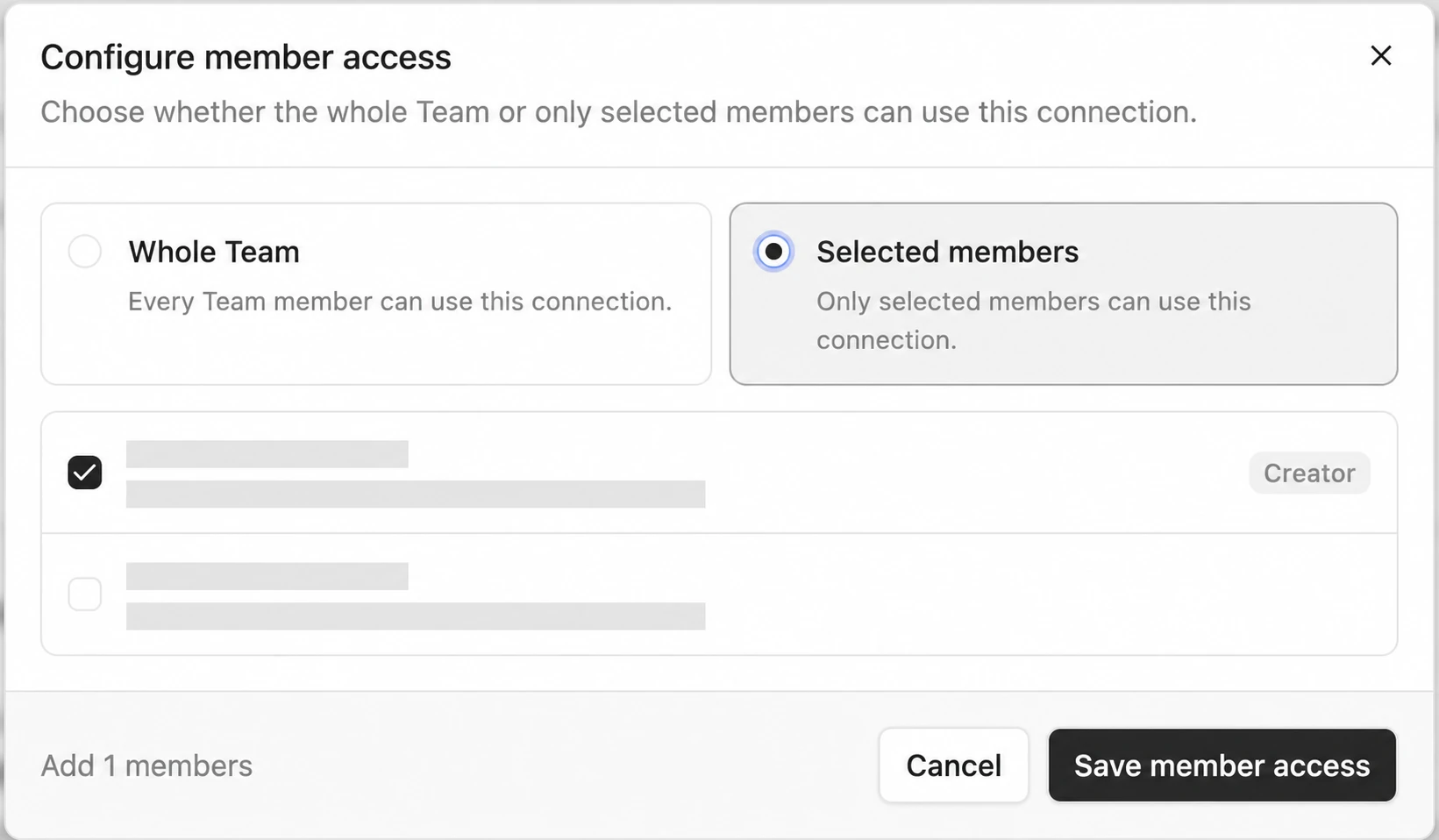
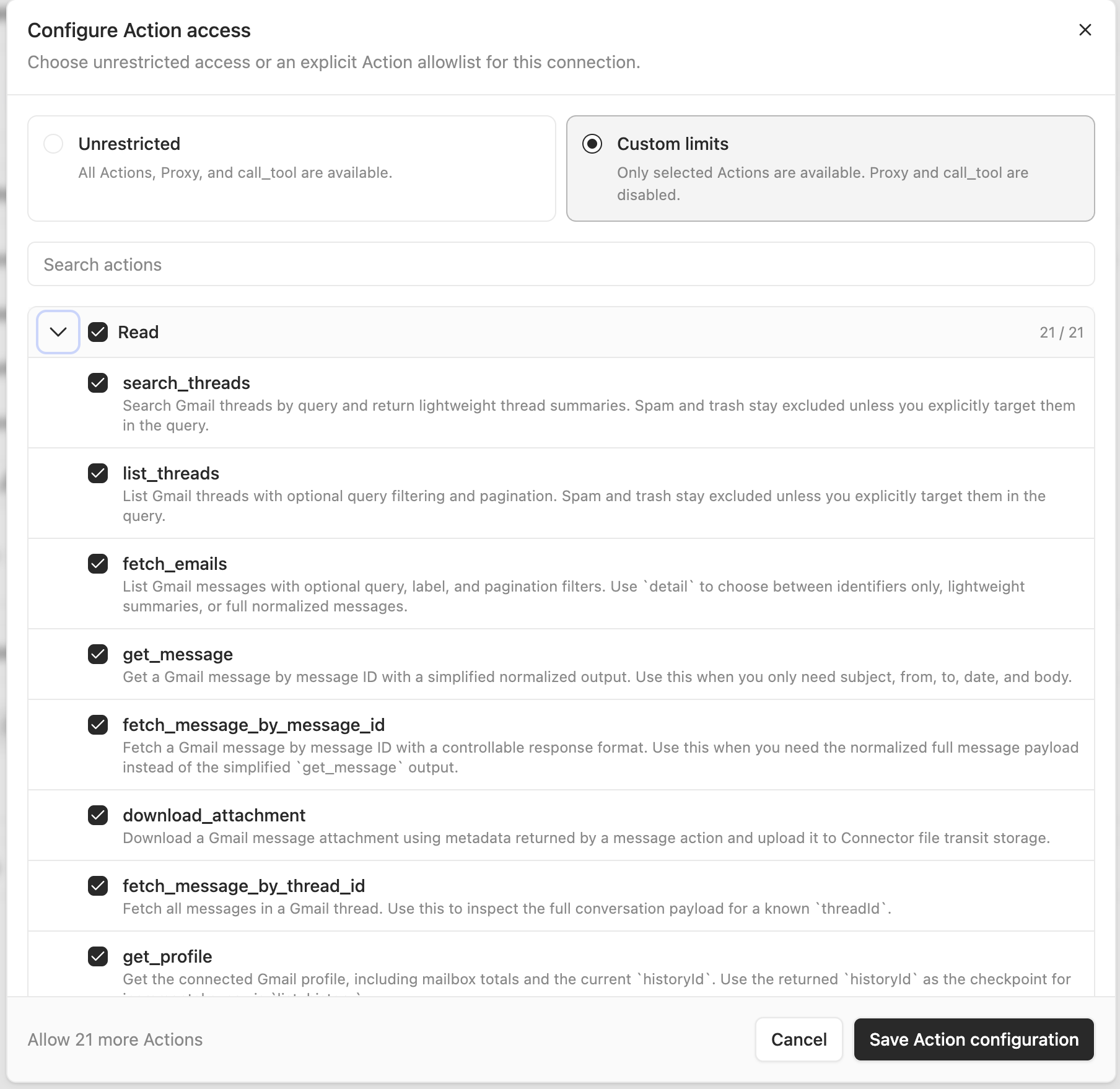
选择 Custom limits 后,未勾选的操作会被拒绝,Proxy 和 call_tool 也会禁用。Unrestricted 允许使用这条连接支持的所有操作,但仍受 monday.com 已授予的 scopes 和连接账号自身权限限制。如果不同成员需要不同的操作范围,请建立独立连接,分别配置成员权限和操作范围。
允许成员使用可以访问 private boards 的连接前,请先检查这些设置。完整权限模型请参阅权限控制。
支持的 monday.com 工具
| 工具范围 | 支持的功能 | 常见使用场景 | 前置条件 |
|---|---|---|---|
| Current user | 读取已授权 monday.com 用户的 profile 信息。 | 在 Agent 或工作流使用 monday.com 前确认连接的是哪个 monday.com 用户。 | 已在 OOMOL 中连接 monday.com,且连接账号处于可用状态。 |
| Account | 读取已连接 monday.com account 的基础信息。 | 在运行工作流前确认 account 信息,尤其适合一个用户属于多个 monday.com accounts 的情况。 | 已在 OOMOL 中连接 monday.com,且连接账号处于可用状态。 |
| Boards | 读取和写入连接账号可访问的 board 数据。 | 总结 board、创建或更新 items、把任务结果写入 columns,或准备项目报告。 | 连接账号可以访问目标 board,且工作流具有有效 board 或 item identifiers。 |
| Updates | 读取和发布 item updates。 | 总结近期活动、提取 action items,或向 item 发布生成的状态 update。 | 连接账号可以访问目标 item 或 board,且工作流具有目标 update 或 item 上下文。 |
| Docs | 读取、创建或更新 monday.com docs。 | 将 board 活动整理成项目报告、会议记录、brief 或可复用文档。 | 连接账号可以访问目标 doc 或位置,且工作流具有所需 doc 内容。 |
| Assets | 读取连接账号可访问的 files 和 asset metadata。 | 将附件作为提取、摘要、报告或文档生成的工作流输入。 | 连接账号可以访问目标 asset。 |
| Users and teams | 读取 monday.com users 和 teams。 | 解析 assignees、owners、reviewers、mentions、team routing 和 escalation paths。 | 连接账号可以访问相关 user 或 team 信息。 |
| Workspaces | 读取、创建、更新或整理 workspaces。 | 设置项目区域、整理 boards 或 folders,或支持 workspace 管理任务。 | 连接账号拥有执行 workspace 动作所需的 monday.com 权限。 |
| Departments | 读取、创建、更新、删除、分配或清除 department 信息。 | 通过明确的管理任务维护 department structure 和用户 department assignments。 | 连接账号是已启用 departments 的 monday.com Enterprise 账号,且连接用户拥有 monday.com 对该动作要求的部门管理权限,例如相关 department 的 owner 权限,或账号级用户管理权限。 |
读取 account 信息、boards、updates、docs、assets、users、teams 和 departments
使用场景:让 Agent 在总结工作、生成报告、准备后续事项、路由任务或执行请求动作前,获取 monday.com 上下文。
前置条件:
- 已在 OOMOL 中连接 monday.com。
- 连接的 monday.com 账号可以访问请求的 account 信息、board、item、update、doc、asset、user、team、workspace 或 department。
- Agent、Skill 或工作流已经获得所需 identifier、搜索输入或已选择的 monday.com object。
工具行为:
- 读取连接账号和已授予 OAuth scopes 可访问的 monday.com 数据。
- 返回请求的 Agent 动作或工作流所需的 monday.com 数据。
- 只读操作不会修改 monday.com。
写入 boards、updates、docs 和 workspaces
使用场景:让 Agent 把用户请求或工作流的结果写回 monday.com,例如创建或更新 board 数据、发布状态 update、生成 doc,或整理 workspace。
前置条件:
- 已在 OOMOL 中连接 monday.com。
- 连接的 monday.com 账号有权限修改目标对象。
- 用户、Skill 或工作流提供了写入目标和内容。
- 提供的值对 monday.com 有效,例如有效的 board IDs、item IDs、doc IDs、column values、workspace IDs 和必填字段。
工具行为:
- 根据提供的输入创建或更新支持的 monday.com 对象。
- 动作完成后,返回 monday.com 提供的结果。
- 除非当前工作流提供了目标,否则不会写入无关的 monday.com 对象。
管理 departments
使用场景:让授权用户通过明确的 department 管理动作管理 monday.com departments,例如维护 department structure,或让 monday.com departments 与内部组织工作流保持一致。
Department 管理工具使用 departments:write,包括:
每个 account member 同一时间只能属于一个 department。将用户分配到某个 department 会替换该用户已有的 department 归属;清除用户 department 会移除该用户当前唯一的 department 归属。
| 工具 | 支持的功能 | 必需输入 | 结果 |
|---|---|---|---|
create_department | 创建 department。 | data 中必须包含 name;reserved_seats 可选。 | 返回创建后的 department,包括 id、name、reserved_seats、assigned_seats、members 和 owners。 |
update_department | 更新已有 department。 | department_id 和 data,其中 data 至少包含 name 或 reserved_seats 之一。 | 返回更新后的 department。 |
delete_department | 删除 department。 | department_id。 | 返回 monday.com 提供的已删除 department 信息。 |
assign_department_members | 将用户分配到一个 department,并替换这些用户已有的 department 归属。 | department_id 和 user_ids。 | 返回 monday.com 提供的 successfulUsers 和 failedUsers。 |
clear_users_department | 清除用户当前唯一的 department 归属。 | user_ids。 | 返回 clearedUsers。 |
前置条件:
- 已在 OOMOL 中连接 monday.com。
- 连接的 monday.com 账号是 Enterprise 计划,并已启用 departments。
- 连接的 monday.com 用户拥有 monday.com 对该动作要求的部门管理权限,例如相关 department 的 owner 权限,或账号级用户管理权限。
- 用户、Skill 或工作流提供了所需 department ID、user IDs 和更新数据。
工具行为:
- 只有当用户、Skill、Agent 动作或工作流明确请求 department 管理时才会运行。
- 根据提供的输入创建、更新、删除、分配或清除 department 数据。
- 将用户分配到新 department 时,会替换该用户当前的 department 归属。
- 返回 monday.com 结果,包括 monday.com 提供的成功和失败用户分配结果。
delete_department 和 clear_users_department 会影响组织级结构和用户归属。运行这些动作前,请检查目标 department 和 user IDs;测试时请使用 demo departments。
测试应用
你可以使用一个允许授权 app 的 monday.com 账号测试 monday.com 应用。建议使用 demo boards、demo docs、demo updates、demo assets 和 demo departments,这样可以安全测试读取和写入动作。
Customer onboarding demo 流程
这个流程会先创建本次测试专用的 demo item,再复用返回的 ID。它不依赖某个已存在的 item、doc 或 asset 名称。
开始前:
- 选择一个连接账号有权限创建 items 的 demo board。
- 准备一个小的 demo 文件,例如
acme-demo-requirements.txt。 - 只使用 demo data,不要使用真实客户、员工、项目或机密内容。
-
确认当前连接的 monday.com 上下文,并找到 demo board:
Use Monday to confirm the connected user and account, then list available workspaces and boards. Keep the output concise and include ids. -
在目标 board 中创建 demo item。将
<BOARD_ID>替换为上一步返回的 board ID:Use Monday to create a new item in board ID <BOARD_ID> named "Customer onboarding - Acme Demo". Then post an update on the new item explaining that it tracks the demo customer's onboarding work. Return the new item id and update id. Keep the output concise. -
在 monday.com 中打开刚创建的 item,将 demo 文件上传到该 item 的 Files tab。继续下一步前,先确认文件已经显示在 monday.com 中。
-
读取 demo item、updates 和 attached assets。将
<NEW_ITEM_ID>替换为创建 item 时返回的 item ID:Use Monday to read item ID <NEW_ITEM_ID>, including item details, recent updates, and attached assets. Summarize the item status, updates, and asset metadata such as file name, asset id, file type, and file size. Keep the output concise. -
创建 demo doc 并读回确认。将
<WORKSPACE_ID>替换为第一步返回的 workspace ID:Use Monday to create a Monday doc named "Acme Demo onboarding status report - video demo" in workspace ID <WORKSPACE_ID>. After creating it, read the newly created doc by its returned id and confirm its id and title. Do not add body content to the doc. Keep the output concise. -
将状态报告写回 demo item:
Use Monday to post an update on item ID <NEW_ITEM_ID> with a concise status report based on the item updates and attached asset metadata. Keep the output concise.
这个流程会覆盖 Agent 使用 connector 时的核心行为:确认 account 上下文、读取 boards 和 item 上下文、读取 updates 和 assets、创建 docs,并将 updates 写回 monday.com。Department 和 workspace 管理可在连接账号启用这些管理工具后,使用 demo data 单独测试。
示例测试 prompts
- Get the current connected monday.com user and account.
- List monday.com boards visible to the connected account.
- Summarize a demo board and post the summary as an item update.
- Create a demo item in a test board.
- Read recent updates from a demo item.
- Create a monday.com doc from a demo project summary.
- Read a demo asset attached to a test item.
- Create a demo workspace named
OOMOL Demo Workspace, then rename it toOOMOL Demo Workspace Archive. - List monday.com users and teams visible to the connected account.
- List monday.com departments.
- Create a demo department named
OOMOL Demo Department. - Update the demo department’s reserved seats.
- Assign a test user to the demo department, replacing any current department assignment for that user.
- Clear the test user’s current department assignment.
- Delete the demo department.
测试时请只使用 demo data,不要在测试 prompt 中使用真实客户、员工、项目或机密 monday.com 内容。
常见问题排查
无法添加 monday.com 应用
- 确认你登录的是正确的 OOMOL 账号。
- 确认你正在登录想要连接的 monday.com 账号。
- 确认 monday.com 账号允许第三方 app 和请求的 OAuth scopes。
- 如果你的 monday.com 账号属于某个组织,请让 monday.com 管理员确认 OOMOL 应用是否需要审批。
- 如果 OOMOL 中已有失败或不完整的 monday.com 连接,先断开它,再重新连接。
- 如果问题仍然存在,请联系 OOMOL 支持,并附上 OOMOL 账号邮箱、monday.com 账号或组织信息、尝试连接的时间、错误信息或截图。
monday.com 工具找不到 board、item、update、doc、asset、workspace、user、team 或 department
- 确认连接的 monday.com 账号可以访问请求的对象。
- 确认工作流使用了正确的 monday.com ID、搜索输入、board、item、doc、asset、workspace、user、team 或 department。
- 检查对象是否存在于已连接到 OOMOL 的 monday.com 账号中。
- 如果你最近调整过 monday.com 权限或 app scopes,请在 OOMOL 中重新连接 monday.com,以刷新授权状态。
monday.com 工具无法写入数据
- 确认连接的 monday.com 账号可以直接在 monday.com 中完成同样的修改。
- 确认工具调用包含所有必需输入。
- 检查提供的值对 monday.com 是否有效,例如 column values、item IDs、board IDs、workspace IDs、doc content、department IDs 和 user IDs。
- 如果 monday.com 返回 policy 或 permission error,请让 monday.com 管理员检查连接账号权限和 app 授权。
Department 动作失败
- 确认连接的 monday.com 账号是 Enterprise 计划,并已启用 departments。
- 确认连接用户拥有 monday.com 对该动作要求的部门管理权限,例如相关 department 的 owner 权限,或账号级用户管理权限。
- 确认 department ID 和 user IDs 有效。
- 注意每个用户同一时间只能属于一个 department。将用户分配到某个 department 会替换该用户已有的 department 归属。
- 对于
assign_department_members,查看successfulUsers和failedUsers,确认 monday.com 接受或拒绝了哪些用户。 - 对于
update_department,至少包含一个可编辑字段:name或reserved_seats。 - 对于
delete_department和clear_users_department,确认目标是 demo 数据或你确实要操作的生产数据。
移除应用
你可以从 OOMOL 或 monday.com 任一侧移除 monday.com 应用。如果你不再希望 OOMOL 访问 monday.com,建议两边都移除。
从 OOMOL 移除 monday.com
- 登录 OOMOL Console。
- 打开 Connections。
- 在已连接 apps 中找到 monday.com。
- 打开 monday.com 连接详情。
- 选择 Disconnect、Remove 或 OOMOL 中显示的对应移除操作。
- 确认移除。
从 monday.com 移除 OOMOL
- 登录 monday.com。
- 打开 monday.com 的 app management、admin 或 connected apps 设置。
- 找到 OOMOL。
- 打开 app 详情。
- 选择 uninstall、disconnect 或 remove 等移除操作。
- 确认移除。
如果你无法在 monday.com 中移除 app,请让 monday.com 管理员移除。
移除后会发生什么
- monday.com 连接被移除或取消授权后,OOMOL 无法继续为你的账号使用 monday.com 工具。
- 依赖 monday.com 的工作流、Agent、Skills 或其他任务会失败,直到你重新连接 monday.com。
- 移除前已创建或更新的 monday.com boards、items、updates、docs、assets、workspaces、departments 和 assignments 仍会保留在 monday.com 中,除非你在 monday.com 中修改或删除它们。
- 移除应用不会删除你的 OOMOL 账号。
数据处理
OOMOL 只会在 monday.com 用户授权应用,并且用户、Skill、已批准的 Agent 动作或工作流需要 monday.com 时访问 monday.com 数据。OOMOL 只会为提供 OOMOL 支持的 Agent、可复用 Skills 和工作流请求的 monday.com 工具而使用 monday.com 数据。
- monday.com OAuth tokens 会加密存储。
- OOMOL 不会向 AI Agent、提示词、浏览器客户端、应用代码或终端用户暴露 monday.com OAuth token。
- 调用 monday.com 工具时,OOMOL 可能处理 monday.com account、user、team、department、workspace、board、item、update、doc 和 asset metadata。
- monday.com 数据只会按需要保存在用户可见的工具结果、使用记录、执行历史或运营记录中。
- 已存储数据会静态加密,并通过 TLS/SSL 传输。
- OOMOL 不会出售你的 monday.com 数据。
- OOMOL 不会将 monday.com 数据用于广告。
- OOMOL 不会使用私有客户内容训练 AI 模型。
- OOMOL 不会作为该 connector 的一部分在后台持续同步或复制 monday.com 账号数据。只有当已授权用户、Skill、已批准的 Agent 动作或工作流调用 monday.com 工具时,才会访问 monday.com 数据。
- 当你移除或取消授权 monday.com 应用后,OOMOL 会停止使用已撤销的 monday.com 授权。OOMOL 会按照正常连接移除流程删除或失效已存储的 monday.com 授权 tokens。
- 某些日志、支持记录、安全记录或账单相关记录可能会按隐私政策保留。
FAQ
我需要付费 monday.com 账号吗?
大多数 OOMOL monday.com 工具要求 monday.com 账号可以授权请求的 scopes。某些 monday.com 功能、app 审批控制、department 管理工具、workspace 权限或账号策略可能取决于你的 monday.com 套餐和组织设置。
可以连接多个 monday.com 账号吗?
请在 OOMOL Console 中查看你的账号或 workspace 当前可用的连接选项。如果你需要多个 monday.com 账号相关帮助,请联系支持。
连接后,Agent 会自动使用 monday.com 吗?
连接 monday.com 会让 monday.com 工具在 OOMOL 中可用,但是否使用工具仍取决于你选择的 Agent、工作流、Skill、权限和审批。基于账号的服务仍然需要你的授权。
OOMOL 会持续同步 monday.com 数据吗?
OOMOL 按需访问 monday.com 数据:已授权用户、Skill、已批准的 Agent 动作或工作流调用 monday.com 工具时,才会读取或修改对应数据。
OOMOL 可以删除 monday.com 数据吗?
当前 monday.com connector 包含用于明确 department 管理动作的 delete_department。除非用户、Skill、已批准的 Agent 动作或工作流使用带有所需目标信息的受支持删除工具,否则 OOMOL 不会删除 monday.com 数据。
所有 monday.com 套餐都支持 department 管理吗?
monday.com department API 适用于支持 departments 的 Enterprise 账号。写入动作还要求当前连接用户拥有 monday.com 对该动作要求的部门管理权限,例如相关 department 的 owner 权限,或账号级用户管理权限。
联系支持
如果你在添加、使用、测试或移除 monday.com 应用时需要帮助,请联系 OOMOL 支持:
请附上你的 OOMOL 账号邮箱、相关 monday.com 账号或组织信息、你正在执行的操作,以及错误信息或截图。