

 Leina
Leina  Wanta
Wanta 


Access control
OOMOL Connector provides fine-grained access control for each connection. You can separately restrict Provider authorization, the actions a connection may call, and the Team members who may use it. You can also connect the same App account more than once to give different members different action sets.
What a call can do is the intersection of these permission boundaries:
Provider OAuth scopes
        ∩
Personal or Team connection access
        ∩
Allowed actions
        ∩
CLI, MCP, or SDK identity scope
        ↓
Actions that can be executed
An individual decides what their Provider account authorizes OOMOL to do and which actions a connection allows. Team creators and administrators decide which connections each member may use. A member’s callable actions come from the connections they can access.
Personal access control
The person who connects an account manages that connection:
| Control | Where to manage it |
|---|---|
| Connect or disconnect an App account | Connections |
| Select or update OAuth scopes | The App connection page |
| Inspect and configure the actions allowed for a connection | Action access on the App connection page |
| Replace API keys, custom credentials, or authorization | The App connection page |
| Create, rotate, or revoke Connector API keys | API Keys |
When a connection supports selectable OAuth scopes, Console shows the permission list before redirecting to the Provider. Select only the scopes required for the task and enable high-risk permissions only when necessary.
Not every Provider supports individual scope selection in OOMOL. The Provider authorization page is the final source of truth. Update or reconnect to reduce existing scopes, or disconnect the connection to stop using it completely.
Manage personal Connections in Console →
Callable actions
Each action declares the scopes or Provider permissions required for execution. An action should be available to a caller only when all of these conditions are satisfied:
- The corresponding connection is active.
- Provider authorization includes the scopes required by the action.
- The personal or Team access policy allows the action.
- The current CLI, MCP, or SDK identity may use the corresponding connection.
Open Connections in Console, then open the relevant App to inspect action schemas and required scopes. Use Action access to configure which actions the connection allows:
- Unrestricted makes all actions, Proxy, and
call_toolavailable. - Custom limits allows only explicitly selected actions and disables Proxy and
call_tool.
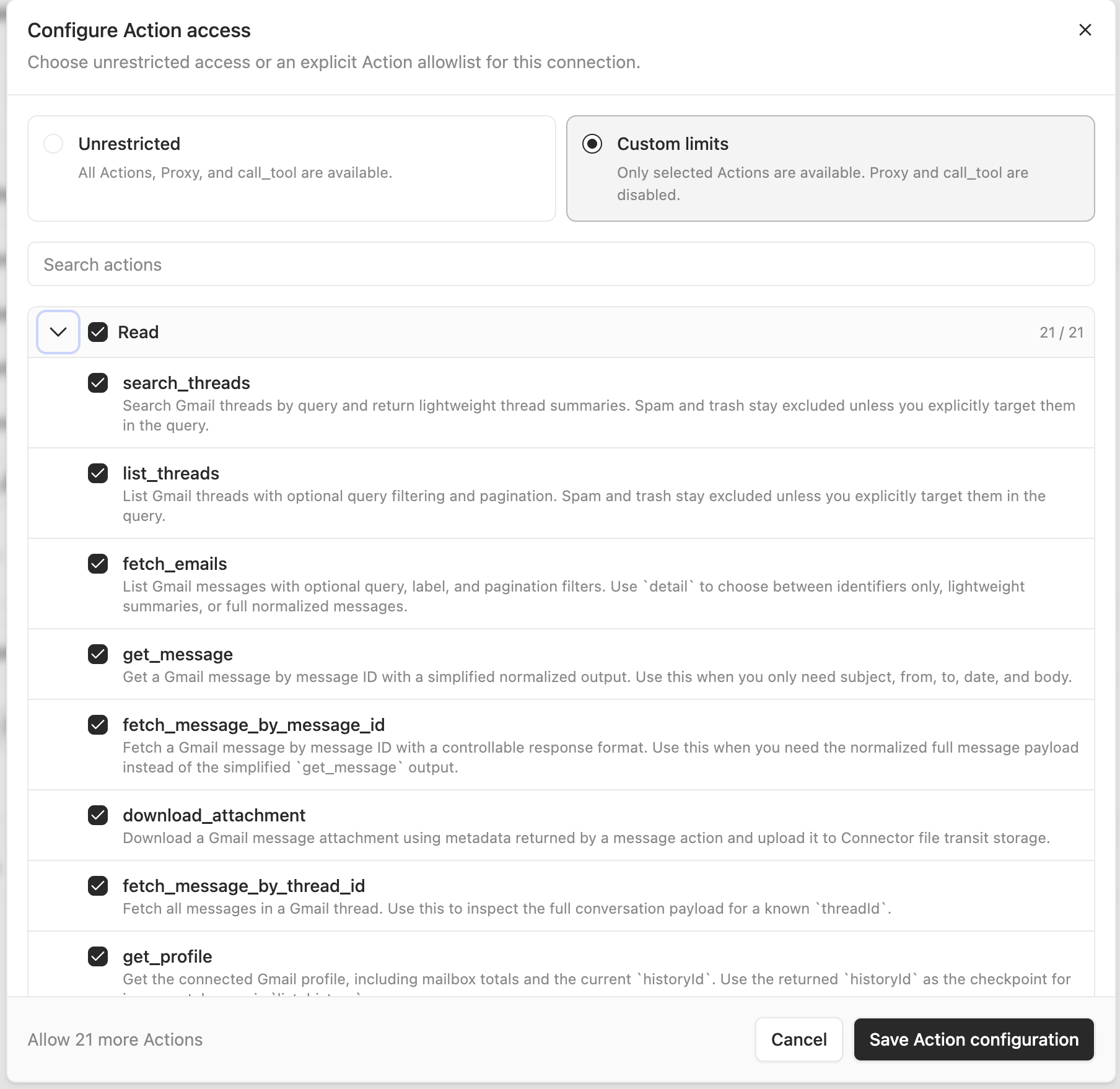
An action with missing scopes requires updated Provider authorization. An action denied by policy should not appear in discovery results, and direct execution is rejected.
For a personal connection, configure the callable action set under Action access. OAuth scopes and connection status still limit the effective set. Team connections use the same action configuration; members receive the allowed actions by receiving access to a connection.
Team access control
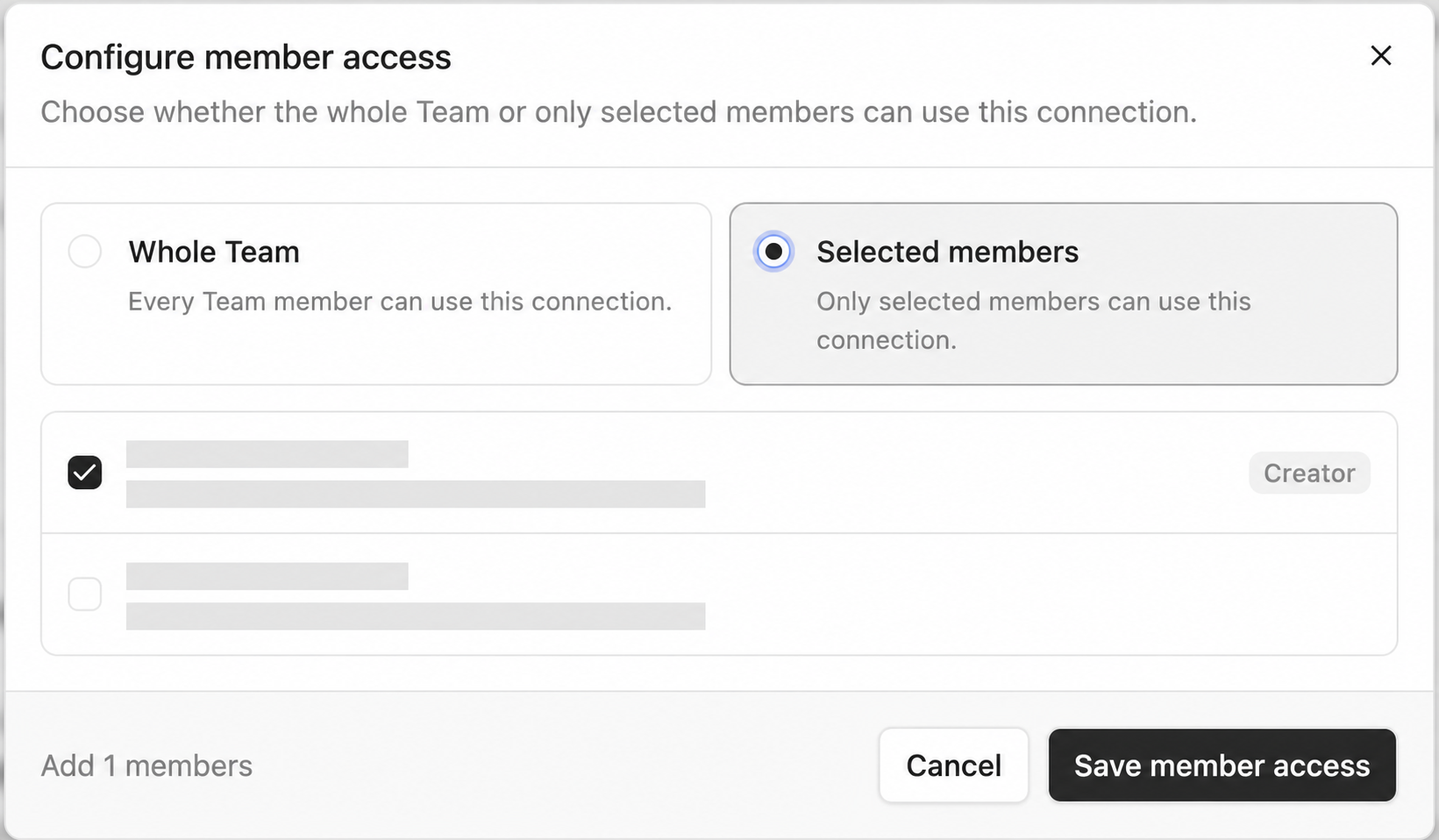
Team permissions add connection access control on top of Provider authorization. A Team does not configure an action allowlist directly on an individual member. Configure Action access for each connection, then use Member access to decide who may use that connection.
Under Member access, choose one of two connection access ranges:
- Whole Team lets every Team member use the connection.
- Selected members lets only explicitly selected members use the connection.
| Control | Where to manage it |
|---|---|
| Add or remove members | Team management |
| Assign admin or member roles | The Team member list |
| Enable or disable members | The Team member list |
| Configure which members may use a connection | Member access on the connection |
| Configure the actions a connection allows | Action access on the connection |
A member’s callable actions are the union of the actions allowed by every connection they can access. With Unrestricted selected, OAuth scopes and the Provider account’s own permissions still limit the effective capabilities.
Assign different permissions to different members
A connection has one Action access configuration and one Member access configuration. When the same App account needs to provide different capabilities to different members, connect the account more than once and configure each connection separately.
For example, create two connections for the same Gmail account:
- Read-only email: under Action access, allow only actions for searching, reading, and downloading email. Under Member access, select the members who only need to read email.
- Send email: allow the actions required to send email, then assign this connection to members who may send on behalf of the Team. If they also need to read email, include the relevant read actions.
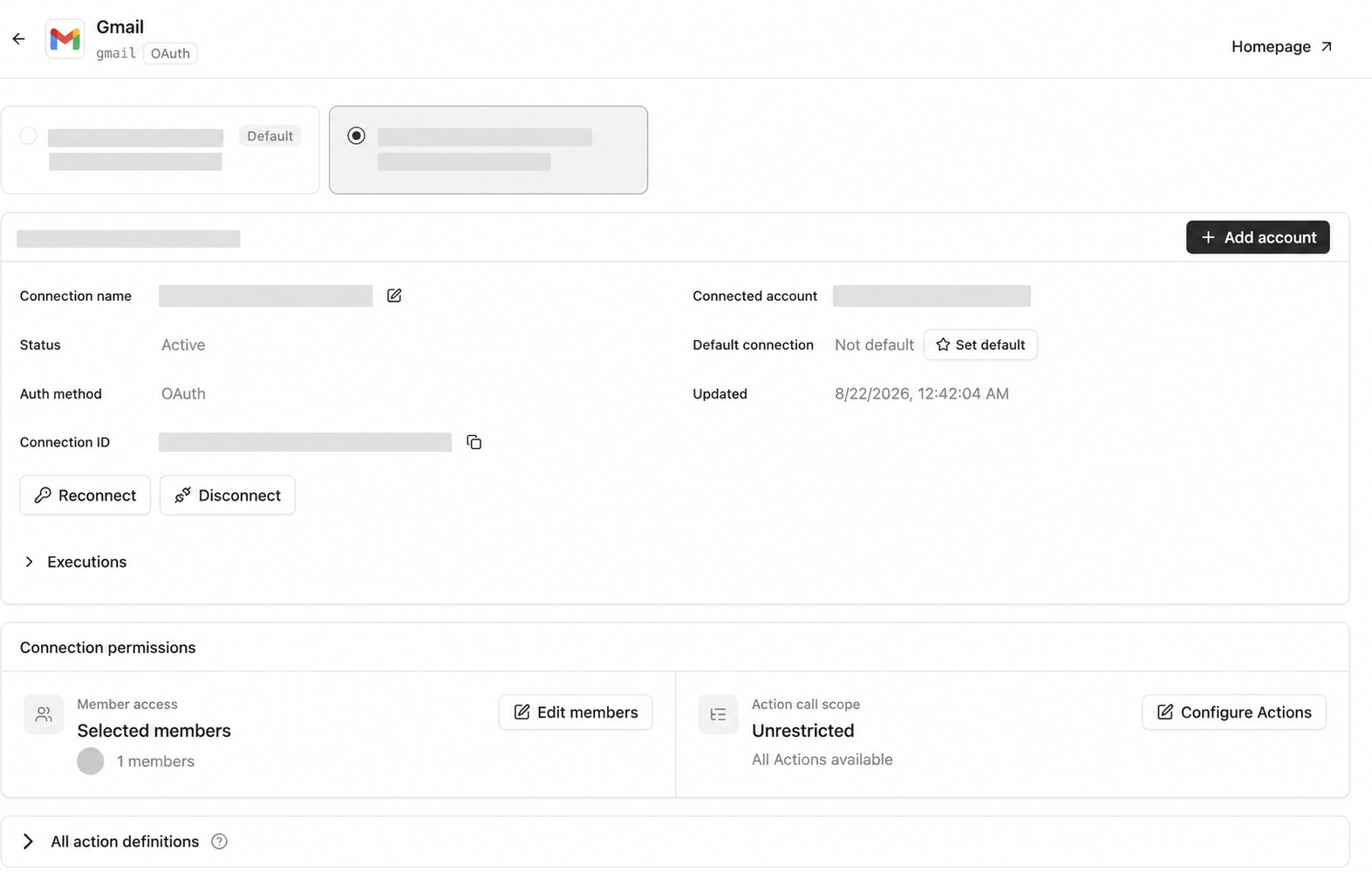
Members can discover and call only the allowed actions from connections they may access. If a member is assigned to multiple connections, their effective permission set is the union of the actions allowed by those connections.
Members can use the granted capability through Team-scoped CLI, MCP, or another supported entry point, but they do not receive raw Provider tokens.
Manage Team access in Console →
Who can manage access
| Identity | Responsibility |
|---|---|
| Connection owner | Chooses Provider scopes and can reauthorize or disconnect the account |
| Team creator | Manages the Team, members, roles, and each connection’s member and action access; has default connection access |
| Team admin | Helps manage members, roles, and connection permission settings |
| Team member | Uses the connections they may access and the actions allowed by those connections, without reading raw credentials |
The Team plan is billed per seat. Review current seats and charges under Billing in Console. Permissions can also depend on the plan, member status, and the Provider account’s own authorization.
Common operations
Reduce personal connection permissions
- Open Connections in Console.
- Open the relevant App and connection.
- Choose to update authorization or reconnect.
- Remove optional scopes that are no longer needed and confirm on the Provider page.
Pause a member’s access
- Open Team management and select the correct Team.
- Disable the member or revoke only their connection access.
- Verify that later calls using that Team identity no longer have the corresponding access.
Disabling a member does not delete the Team’s Provider connection. Disconnecting the Provider account affects every call that depends on that connection.
Access versus execution confirmation
Even when an action is permitted, confirm the target connection, action, and final parameters before an Agent sends messages, changes external data, expands sharing, or deletes content.
What are Proxy and call_tool?
| Capability | What it does | Why Custom limits disables it |
|---|---|---|
| Proxy | Uses connection credentials to request a Provider API directly when an endpoint has not been modeled as an action | The requested endpoint and method are outside the selected action allowlist |
call_tool | For Apps with dynamic MCP tools, invokes an upstream MCP tool by name and arguments | Upstream tools may not each be modeled as selectable actions, and the tool list can change |
Proxy and call_tool remain constrained by the connection’s Provider authorization, but a named action allowlist cannot fully constrain them. Custom limits closes both paths so calls can reach only explicitly selected actions. Use Unrestricted only when access to an unmodeled API or dynamic MCP tools is required, and narrow Member access accordingly.
Continue with Team management for Team roles and member access boundaries.